Physical Computing provides engaging, relevant, and inclusive learning experiences and helps develop programming skills while being creative and collaborative. Code makes something happen in the real-world, not just on a screen. Learners (particularly girls) find physical computing engaging.
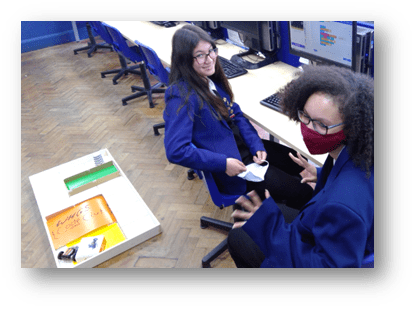
Physical computing devices take some time to set up, and can add complexity and behaviour challenges to a lesson, so take some time to think through these before using them in class.
Getting Started
- Start small. Focus on a small cohort, maybe an after-school club, until you get up to speed.
- Use the training and support available, there are physical computing courses on TeachComputing.org and help is available from your hub
- Choose a device and activity based on context, setting and need.
There are five main categories of device, and the most common are listed below:
- Packaged Electronics such as “Snap Circuits” – these require a lot of electronics knowledge and are best suited to DT projects.
- Packaged programmable products: Sphero, Bee-Bot, Lego WeDo/Mindstorms and VEX are simple to set up and get you straight to the programming, good for Primary settings.
- Peripheral boards such as the MaKey MaKey connect to a computer to add interactivity, but cannot be unplugged and run standalone. Simple and fun!
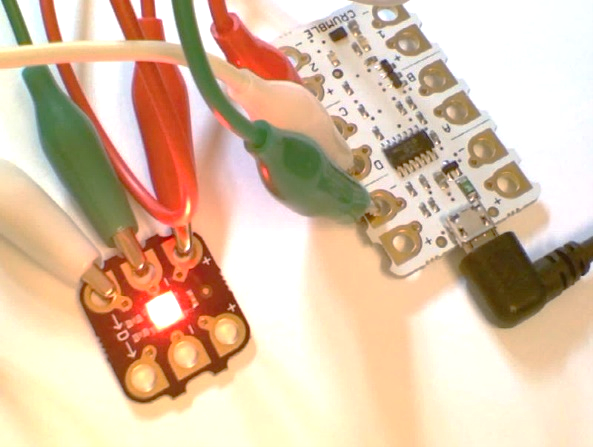
- Embedded boards like the Micro:Bit, Crumble and Raspberry Pi Pico have a microprocessor onboard that you program via a computer, but they then run the program independently, so can be disconnected. Use these to control buggies, create musical instruments, name badges and weather stations…
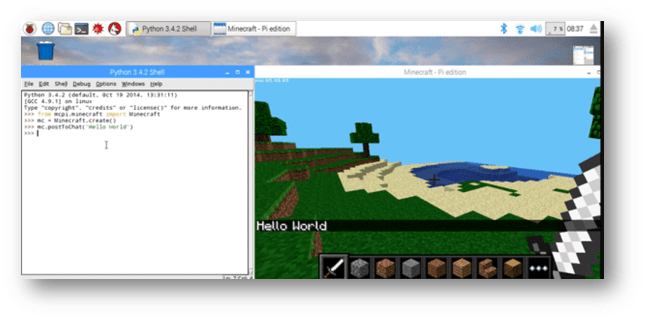
- General purpose boards like the Raspberry Pi 3, 4, Zero W and W2 are actually whole computers that run a full Linux-based GUI operating system. You connect one to a monitor, mouse and keyboard and use it like a computer, but it has lots of interfaces for connecting electronic equipment. You can do almost anything with a Pi, but the learning curve is steeper than the above devices. They run Scratch, Sonic Pi and Minecraft with a Python interface, so you can write “mods”, or connect a camera to make a digital photobooth, the possibilities are limitless!
Next steps
- Book onto some Physical Computing CPD at teachcomputing.org/courses
- Choose a device and an activity – see the teachcomputing.org/curriculum or the Raspberry Pi projects website: projects.raspberrypi.org
- Contact a nearby Computing Hub to request a loan of a physical computing kit
- Try it out in a small group like your own after-school club, a Code Club or Coder Dojo, then introduce to your classes!
This blog was based on material from the NCCE. Visit blog.teachcomputing.org/quick-read-physical-computing to find out more about physical computing, or read the other principles at teachcomputing.org/pedagogy. And subscribe to Hello World to read much more about computing pedagogy every two months: helloworld.raspberrypi.org.
And if you like this post, remember to thank me with a coffee, and then go and buy one of my books, “How to Teach Computer Science” is packed with teaching ideas like this. Thanks!


 How to Teach Computer Science
You must be logged in to post a comment.